

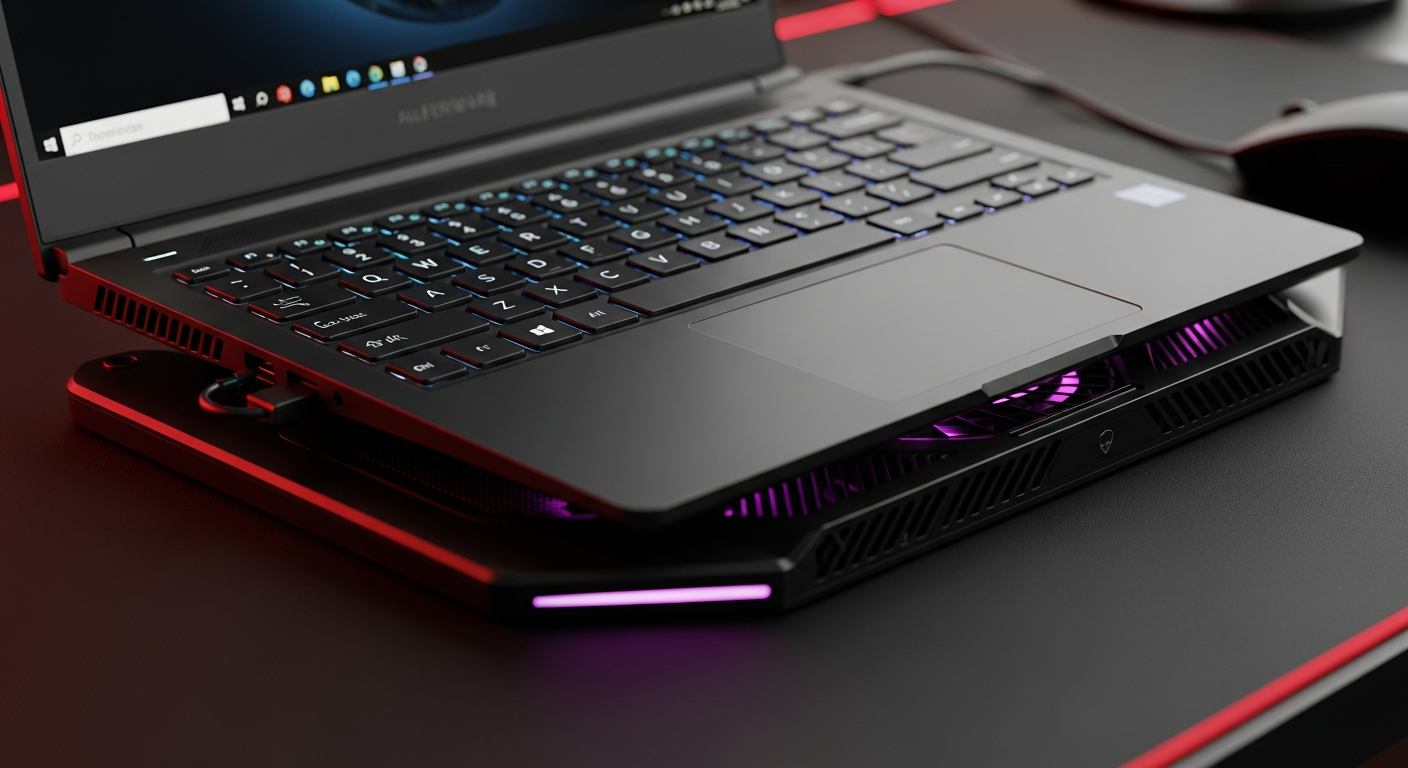
Effective laptop cooling is crucial for preventing performance drops, extending hardware lifespan, and ensuring stable gaming, achievable through a combination of internal maintenance, external accessories, and software optimization.
Table of Contents
Is your gaming laptop feeling the heat? High temperatures don't just make your lap uncomfortable; they directly impact your rig's performance and longevity. Mastering laptop cooling is key to unlocking consistent frame rates and safeguarding your investment.
Why Your Laptop Gets Hot: The Core Problem
High-performance components like CPUs and GPUs generate significant heat, especially under load during gaming or demanding tasks. If this heat isn't dissipated efficiently, temperatures rise, leading to various issues.
- Thermal Throttling:Components automatically reduce clock speeds to prevent damage, causing noticeable performance drops and stuttering.
- Hardware Degradation:Prolonged exposure to high temperatures can shorten the lifespan of vital components like the battery, CPU, GPU, and SSD.
- Reduced Stability:Overheating can lead to system crashes, blue screens of death (BSODs), and general instability during crucial moments.
- User Discomfort:Hot keyboards, touchpads, and chassis make the laptop uncomfortable to use, impacting your gaming experience.
- Fan Wear & Tear:Constantly running fans at maximum speed accelerate their degradation and increase noise levels.
Optimizing Internal Cooling: What's Inside Matters
Your laptop's internal cooling system is its first line of defense against heat. Understanding how it works and keeping it in top condition is paramount for efficient thermal management.
- Clean Air Vents:Regularly inspect and clean air intake and exhaust vents to ensure unobstructed airflow; dust buildup is a primary culprit for overheating.
- Fan Maintenance:Use compressed air to carefully clean fan blades and heatsinks, dislodging accumulated dust that impedes heat transfer.
- Repaste Thermal Compound:For advanced users, replacing the stock thermal paste on the CPU and GPU every 1-2 years with a high-quality alternative can significantly improve heat transfer.
- Firmware Updates:Keep your BIOS/UEFI firmware updated, as manufacturers often release updates that improve fan control algorithms and thermal profiles.
- Elevated Placement:Always use your laptop on a hard, flat surface to allow proper airflow beneath the chassis, avoiding soft surfaces like beds or carpets.
External Cooling Solutions: Boosting Performance
While internal cooling is critical, external accessories can provide an essential boost, especially for gaming laptops pushed to their limits or operating in warmer environments.
- Laptop Cooling Pads:These active coolers feature integrated fans that blow cool air towards the laptop's underside, directly assisting heat dissipation.
- Adjustable Stands:Elevate your laptop for better natural airflow, even without active fans, improving ergonomics and reducing heat buildup.
- External Fans/Blowers:Small, targeted fans can be positioned to direct airflow towards specific hot spots or exhaust vents, augmenting the laptop's own fans.
- Environmental Control:Ensure your gaming environment is cool; an air-conditioned room or even a desk fan can significantly lower ambient temperatures around the laptop.
Software & Settings: Fine-Tuning for Thermals
Beyond hardware, software plays a crucial role in managing your laptop's thermal profile. Intelligent settings can reduce unnecessary heat generation.
- Power Plans:Adjust Windows Power Options (or equivalent) to 'Balanced' or 'Power Saver' profiles when not gaming, reducing CPU/GPU clock speeds and heat output.
- Background Processes:Close unnecessary applications and background processes before gaming to free up resources and lessen CPU/GPU workload.
- Game Settings:Lowering graphics settings like texture quality, anti-aliasing, or resolution can drastically reduce GPU load and, consequently, heat generation.
- Driver Updates:Keep your GPU drivers (NVIDIA, AMD) updated. New drivers often include performance optimizations and improved thermal management profiles.
- Monitoring Software:Use tools like HWMonitor, MSI Afterburner, or HWiNFO64 to track CPU/GPU temperatures and fan speeds, helping you identify overheating trends.
Proactive Maintenance: Extending Your Rig's Life
- Regular Cleaning Schedule:Make it a habit to clean your laptop's vents and fans at least once every 1-2 months, or more frequently if used in dusty environments.
- Thermal Paste Renewal:Consider professional thermal paste replacement every two years to maintain optimal heat transfer efficiency.
- Battery Health:Monitor battery health, as a degrading battery can sometimes contribute to increased internal temperatures.
- Avoid Obstruction:Never block air vents with hands, books, or any other objects during use.
- Handle with Care:Transport your laptop in a padded case to prevent physical damage that could compromise internal cooling components.
Frequently Asked Questions
+ Does undervolting help with laptop cooling?
Yes, undervolting reduces the voltage supplied to the CPU/GPU without lowering performance significantly, leading to lower power consumption and thus lower heat generation. It requires careful testing.
+ Is it bad to use a laptop on my lap?
Generally, yes. Using a laptop directly on your lap or soft surfaces blocks crucial air intake vents on the bottom, trapping heat and hindering proper cooling, which can lead to overheating.
+ How hot is too hot for a laptop CPU/GPU?
While specific thresholds vary, sustained CPU temperatures above 90-95°C and GPU temperatures above 85-90°C under load are generally considered too hot and can cause thermal throttling or long-term damage.
+ Are all cooling pads effective?
No. The effectiveness of cooling pads varies significantly. Look for pads with large, strategically placed fans that align with your laptop's intake vents, and consider models with adjustable fan speeds for better control.
Final Thoughts
By implementing these comprehensive laptop cooling strategies, you can significantly enhance your gaming experience, prevent performance bottlenecks, and extend the lifespan of your valuable hardware. Don't let heat be the enemy of your high-performance rig.
Share:
Beyond DPI: The Ultimate Guide to Gaming Mice for Indian Gamers (2026)
Mechanical Keyboards: The Gamer's Ultimate Weapon for Victory