

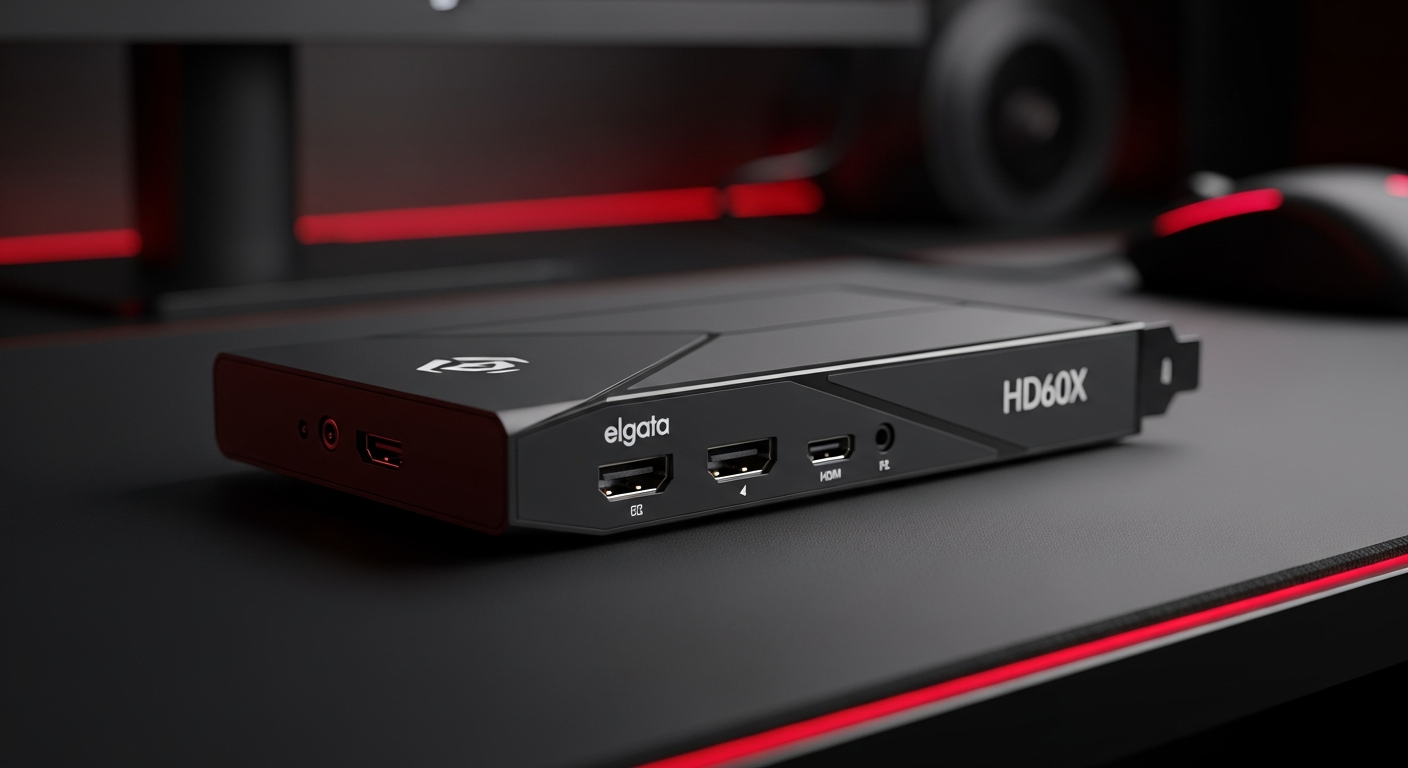
Capture cards are indispensable hardware for gamers and content creators, enabling high-quality video recording and live streaming of console or PC gameplay without compromising system performance.
Table of Contents
For serious gamers and aspiring streamers, a capture card is more than just an accessory—it's the backbone of your content. Understanding its role is key to producing crisp, lag-free broadcasts and recordings that captivate your audience.
What is a Capture Card?
A capture card is a device that converts video signals from a source (like a gaming console, another PC, or a camera) into a digital format that your computer can process, record, or stream. It acts as an external or internal bridge, offloading the intensive video processing from your primary gaming system to a dedicated device or a second PC.
- Dedicated Hardware: Processes video/audio signals independently from your gaming rig.
- Enables Dual PC Streaming: Record/stream gameplay from a dedicated gaming PC to a separate streaming PC.
- Console Compatibility: Essential for capturing footage from PlayStation, Xbox, Nintendo Switch, etc.
- High-Quality Output: Preserves original resolution, frame rate, and audio fidelity.
- Reduces System Strain: Prevents performance drops on your gaming PC by offloading encoding tasks.
- Broadcaster's Best Friend: Critical for professional-looking live streams and recorded content.
- Versatile Use: Also used for recording video meetings, presentations, or older analog video sources with appropriate adapters.
Types of Capture Cards
Capture cards come in two primary forms: internal and external. Each type offers distinct advantages and disadvantages depending on your setup, budget, and portability needs.
- Internal Capture Cards:
- PCIe Interface: Plugs directly into your PC's motherboard (PCIe slot).
- High Bandwidth: Offers superior speed and minimal latency for demanding tasks.
- Ideal for Dedicated Setups: Best suited for fixed, high-performance streaming PCs.
- No External Cables (besides input/output): Neater cable management around your desk.
- Requires Desktop PC: Not an option for laptops or consoles without a separate streaming PC.
- External Capture Cards:
- USB Connection: Connects via USB 3.0, USB-C, or Thunderbolt to any computer.
- Portability: Easy to move between different setups, great for events or laptop streaming.
- Plug-and-Play: Generally simpler to set up than internal cards.
- Versatile Use: Can capture from consoles or another PC, even if your main streaming rig is a laptop.
- Potential for Higher Latency: USB bandwidth can sometimes be a bottleneck compared to PCIe, though modern USB 3.0/3.1 cards are very efficient.
Key Features to Look For
Choosing the right capture card involves evaluating several critical specifications to ensure it meets your specific content creation goals and current hardware setup. Prioritize features that align with the quality you aim to deliver.
- Resolution and Frame Rate: Input supports your source's output (e.g., 4K60, 1080p120); Recording/Streaming is max resolution/frame rate it can encode (e.g., 1080p60, 4K30).
- Passthrough: Allows zero-latency gaming on your primary monitor at full resolution and refresh rate, crucial for competitive play.
- Latency (Input to Stream): Minimal delay in signal processing to streaming software; lower is always better for real-time monitoring.
- Hardware Encoding vs. Software Encoding: Hardware encoding uses the card's own chip, freeing your CPU/GPU; software relies on your computer's resources.
- Connectivity: HDMI 2.0/2.1 for high-res/high-refresh input/output; USB 3.0/3.1/Thunderbolt for external cards ensuring sufficient bandwidth.
- Software Support: Intuitive companion software for easy setup, recording, and streaming, compatible with OBS Studio, Streamlabs, etc., offering customization.
- HDR/VRR Support: For capturing and passing through advanced display technologies found in modern consoles and GPUs.
Setting Up Your Capture Card
Integrating a capture card into your streaming or recording setup is a straightforward process, though it varies slightly between internal and external models. Following these general steps will get you started quickly.
- Hardware Connection (External): Connect your gaming console/PC to the capture card's "IN" port (usually HDMI), then the card's "OUT" port (HDMI Passthrough) to your gaming monitor/TV, and finally connect the capture card to your streaming PC via USB.
- Hardware Connection (Internal): Install the PCIe card into an available slot on your streaming PC motherboard, connect your gaming console/PC to the card's "IN" port (HDMI), and connect the card's "OUT" port (if available for passthrough) to your gaming monitor.
- Driver Installation: Install the latest drivers and any bundled software from the manufacturer's website.
- Software Configuration: Open your streaming software (e.g., OBS Studio), add a new "Video Capture Device" source, select your capture card, and configure resolution, FPS, and audio settings.
- Audio Setup: Ensure audio is correctly routed from the capture card input to your streaming software and monitored if needed.
- Test and Adjust: Perform test recordings/streams to check for quality, latency, and audio sync, adjusting settings as necessary.
Frequently Asked Questions
+ Do I really need a capture card for streaming?
If you stream from a console, absolutely. For PC gaming, a capture card is highly recommended for dual-PC setups or if your single PC struggles with simultaneous gaming and software encoding, ensuring better performance and stream quality.
+ Can I use a capture card with a laptop?
Yes, external capture cards are perfect for laptop setups, providing portability and the necessary connectivity to stream or record from consoles or another PC.
+ What's the difference between passthrough and recording resolution?
Passthrough resolution is what you see on your gaming monitor, often higher for a better gaming experience. Recording/streaming resolution is what the capture card encodes and sends to your audience, which can be lower to optimize bandwidth or processing power.
Final Thoughts
A high-quality capture card is an indispensable tool for any serious content creator aiming for professional streams and crisp recordings. By understanding the different types and key features, you can confidently choose the perfect device to elevate your gaming content and engage your audience like never before. Invest wisely, and let your gameplay shine!
Share:
Find Your Perfect Fit: The Ultimate Guide to Gaming Mouse Shapes, Grip Styles & Ergonomics for Indian Gamers
Unleash Your Sonic Edge: The Ultimate Guide to Advanced Gaming Audio for Competitive Indian Gamers (2026)